
 Join Slack
Inventory Profiles
Overview
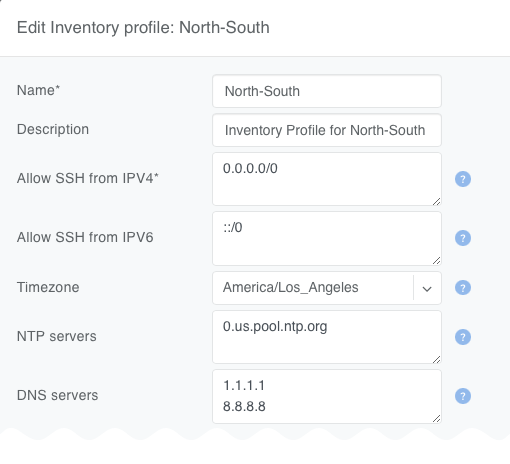
Inventory profiles allow security hardening of inventory devices and fabric-wide configuration optimizations.
By default all traffic flow destined to switch/SoftGate is allowed. As soon as the inventory profile is attached to a device it denies all traffic destined to the device except Netris-defined and user-defined custom flows.
Automatically allowed IPv4 and IPv6 inbound flows include:
SSH TCP port 22 from user defined subnets
NTP UDP port 123
DNS UDP and TCP port 53
SNMP UDP port 161 (IPv4 only) from user defined subnets
BGP TCP port 179 from defined neighbors and fe80::/64
ICMP
DHCP
Custom user defined rules
Name |
Profile name |
Description |
Free text description |
Allow SSH from IPv4 |
List of IPv4 subnets allowed to ssh (one address per line) |
Allow SSH from IPv6 |
List of IPv6 subnets allowed to ssh (one address per line) |
Timezone |
Devices using this inventory profile will adjust their system time to the selected timezone. |
NTP servers |
List of domain names or IP addresses of NTP servers (one address per line). You can use your Netris Controller address as an NTP server for your switches and SoftGate. |
DNS servers |
List of IP addresses of DNS servers (one address per line). You can use your Netris Controller address as a DNS server for your switches and SoftGate. |
SNMPv2 |
SNMPv2 Read-Only Community; IPv4 allow list; Contact information; Location information |
NetQ |
NetQ server address and port |
Syslog Servers |
Up to 4 remote syslog servers; RFC 5424 format toggle |
SNMPv2 credentials
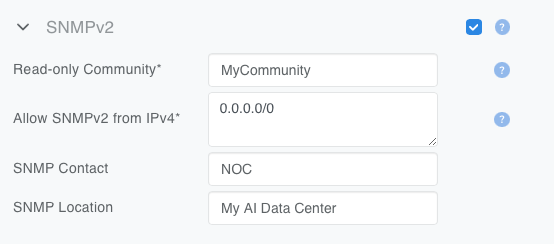
Netris administrators can define SNMPv2 credentials to monitor switches in the inventory. To add SNMPv2 credentials, expand the SNMPv2 section of the Inventory Profile form, set the checkbox to enabled, and fill in the fields as described below:
Read-Only Community |
✅ required |
Specify the SNMPv2 read-only community string. |
Allow SNMPv2 from IPv4 |
✅ required |
Specify the IPv4 subnets from which SNMPv2 requests will be accepted. |
SNMP Contact |
🔹 Optional |
Specify the SNMP contact information. |
SNMP Location |
🔹 Optional |
Specify the SNMP location information. |
Note
Configuring SNMP monitoring of SoftGates is planned for future releases.
NetQ Settings
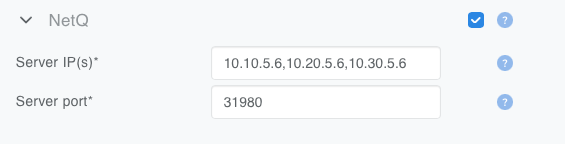
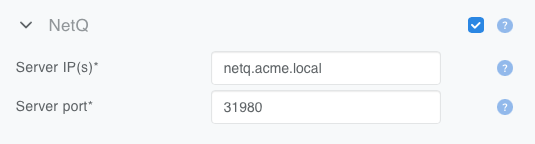
Netris administrators can define the NetQ server address and port to automatically configure the NetQ client on Cumulus Linux-based switches.
NetQ Server |
✅ required |
Specify the IP address(es) or the FQDN of the NetQ server. You can specify one(1) or three(3) addresses separated by commas or one FQDN. |
NetQ Port |
✅ required |
Specify the port of the NetQ server. Default is 31980. |
Tip
You may also export your network topology as a Graphviz DOT file to import into your NetQ instance. See NVIDIA NetQ Integration for more details.
Syslog Settings
Netris administrators can define up to four remote syslog destinations per Inventory Profile. Once configured, Netris pushes the syslog configuration to every switch assigned to the profile, so devices forward their logs to your SIEM or log collection system without any manual per-switch configuration. To configure syslog forwarding, expand the Syslog Servers section of the Inventory Profile form, set the checkbox to enabled, and fill in the fields as described below:
RFC 5424 Format |
🔹 Optional |
Send messages in the structured RFC 5424 format. When disabled (default), messages use the legacy RFC 3164 format. |
Host / Server Address |
✅ required |
IPv4 address or FQDN of the remote syslog server. |
Port |
✅ required |
Destination port. Default is 514. |
Protocol |
✅ required |
UDP (default) or TCP. |
Severity Level |
✅ required |
Minimum severity to forward: Emergency, Alert, Critical, Error, Warning, Notice, Informational (default), or Debug. Only messages at or above the selected severity are forwarded. |
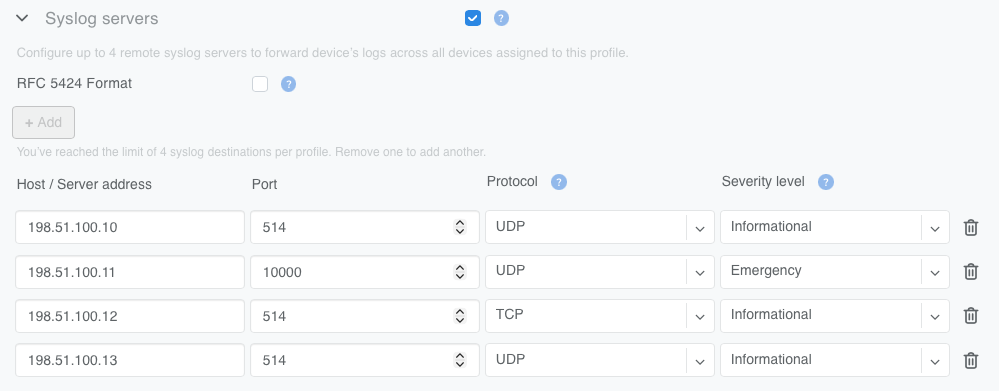
Figure: Syslog Servers section of the Inventory Profile form
Use + Add to configure additional servers, up to four per profile. Each server row can be removed with the trash icon; at least one server must remain while Syslog is enabled.
Syslog destination configuration is supported on Arista EOS, NVIDIA Cumulus Linux, and Dell SONiC switches. See the Supported Functionality and Platforms Matrix for platform-by-platform support.
Fabric Settings
Netris can automatically optimize fabric configurations based on the administrator’s design and preferences. The following controls are available in the Fabric Settings section of the Inventory Profile form:
Fabric Type (default = General Purpose). The selected fabric type acts as a filter to determine which switches are subject to the “Optimize BGP Overlay for leaf-spine topology” feature as described below. Supported values include:
Generic
East-West
East-West-Plane1
East-West-Plane2
East-West-Plane3
East-West-Plane4
North-South
OOB
Optimize BGP Overlay for leaf-spine topology (default = checked). When checked, Netris applies the following logic to all switches sharing the Fabric Type value set in this Inventory Profile. Netris configures designated switches as EVPN Route Servers (EVPN-RS), and each switch with the Switch Role property set to Leaf forms overlay BGP sessions (address-family l2vpn evpn) exclusively with those nodes. No other overlay BGP sessions are configured.
EVPN-RS designation works as follows:
If no switch object has the EVPN Route Server property set, Netris automatically selects the two switches with the Switch Role property set to Super-Spine — or, if no Super-Spine switches are present, the two switches with the Switch Role property set to Spine — with the lowest loopback IPs.
If one or more switch objects have the EVPN Route Server property set, automatic selection is disabled entirely and Netris uses only the explicitly designated switches as EVPN-RS nodes.
Because setting the property on even one switch disables automatic selection, operators should explicitly designate at least two switches for redundancy. Netris does not automatically enforce this recommendation.
When unchecked, overlay BGP sessions are configured on all point-to-point links.
Optimize BGP Overlay for Hypervisor Integrated Fabric (default = unchecked). Required for BGP/EVPN VXLAN integration with compute hypervisor networking. This optimization makes sure that a large number of hypervisor virtual networking EVPN prefixes do not overflow switch TCAM.
BGP Numbered Underlay (default = unchecked). When checked, BGP underlay sessions will be configured using p2p IPv4 addresses configured on link objects in the Netris controller. Otherwise, the BGP unnumbered method is used, and BGP sessions use p2p IPv6 link-local addresses.
Automatic Link Aggregation (default = unchecked). When checked, the UI automatically unchecks Enable MC-LAG.
Generate ESI by Server ID (default = unchecked). When checked, ESI-IDs are generated using server-ID-based logic instead of the default partner-MAC-based method. The setting is backward compatible: existing ESI-IDs remain valid, and servers not modeled in Netris automatically fall back to partner-MAC-based generation. Note that when multiple bond interfaces are present on servers, this should remain unchecked.
Enable MC-LAG (default = unchecked). When checked, Automatic Link Aggregation will automatically become unchecked through the UI. If unchecked none of MC-LAG related configurations should be generated by switch agents. Help message: “Enabling MC-LAG functionality will disable any EVPN-MH functionality. Two multihoming methods are not supported simultaneously on the same switches.”
GPU Cluster Specific Settings
Additional optimizations are available for East-West GPU interconnect fabrics.
QoS & RoCE (default = unchecked) Optimize for RDMA over Converged Ethernet
RoCE Adaptive Routing (AR) (default = unchecked) Enable Adaptive Routing for RoCE
Congestion Control (default = unchecked) Enable Zero Touch RoCE Congestion Control
ASIC monitoring (default = unchecked) Enable ASIC monitoring: histograms and telemetry snapshots.
HWMP (default = unchecked) Enable Hardware Multiplane (HWMP) support for GPU cluster fabrics with multiple planes of switches and leaf-spine topology. Must set the appropriate Reference Architecture.
Reference Architecture (default = None) This setting tells Netris which reference architecture is being deployed on the subject fabric, so Netris can apply the appropriate prefix summarization in the L3VPN overlay.
Reference Architecture
IPv4
Summarization mask
IPv6
Summarization mask
H100/H200/B200 SPX 2-TIER
H100/H200/B200 SPX 3-TIER
/26
/56
GB200 SPX 2-TIER
GB200 SPX 3-TIER
/25
/56
B300/GB300 SPX 2-TIER/3-TIER, SINGLE/DUAL/QUAD-PLANE (all combinations)
/24
/56
Custom Rules
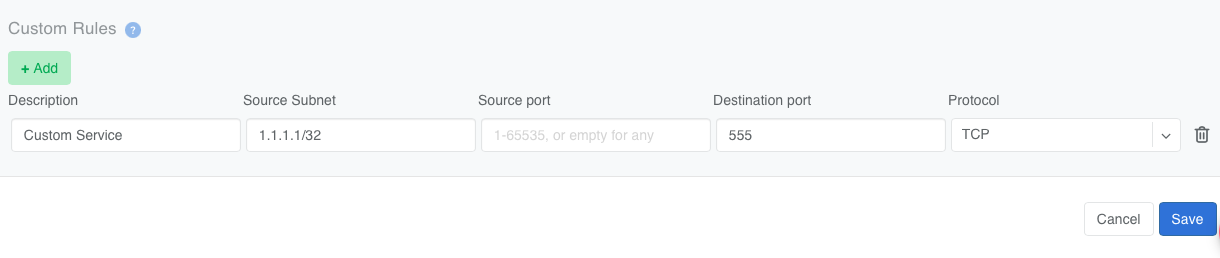
Custom rules allow the administrator to define specific allow/deny flows to/from inventory devices.
If an inventory profile is attached to a switch or a softgate, then Netris configures an implicit inbound deny ACL. Several rules are automatically added to this ACL to allow the necessary system services connections like NTP, DNS, SSH from Allowed Hosts, BGP, ICMP, DHCP, SNMP. Everything else is denied by the implicit deny rule. If additional inbound services (e.g., Netflow/Sflow) need to be allowed, you can use Custom Rules to permit those connections.
In the example below, a custom rule is defined to allow inbound TCP traffic on port 555 from 1.1.1.1/32 to the inventory device.
ZTP Settings
NOS Image file When Zero Touch Provisioning (ZTP) is in use, this Network Operating System image will be used to bootstrap the switches subject to this Inventory Profile.
NOS Admin Password Once the ZTP process completes, Netris will configure this password for the builtin admin user.
NOS Admin Confirm Password Confirmation of the NOS Admin Password.